Compress a PDF Without Losing Quality: What Works and What Doesn't
PDFs get big for specific reasons. Here is what actually makes them large, what our Compress PDF tool does and does not do, and practical ways to shrink one.
Most people who search for a way to compress a PDF have a specific problem: the file is too big to email or upload, and they do not want the pages to look worse. That goal is reachable, but only if you understand where the bytes live. Some PDFs shrink a lot with no visible change, others barely shrink at all, and a tool that promises a fixed reduction on every file is not being straight with you. This article explains the mechanics and then the honest options, including what our own Compress PDF tool does.
What makes a PDF large
A PDF is a container. Inside it are pages, and pages reference objects: text, fonts, images, vector drawings and structure data. In practice, size comes from a short list of things:
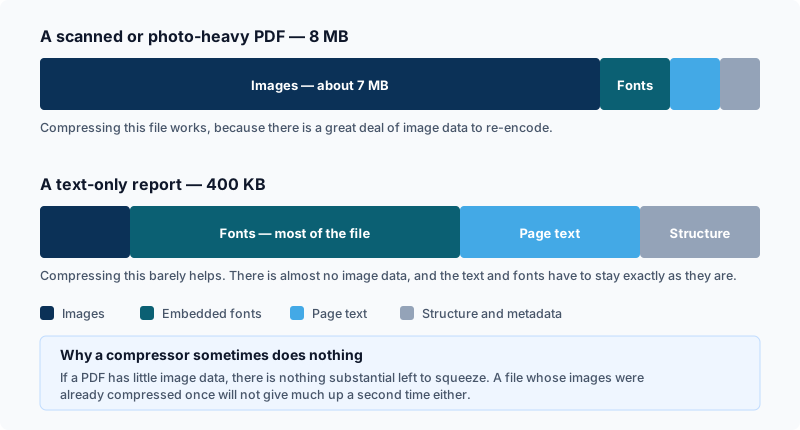
- Embedded images. Scans and photo-heavy documents are dominated by these. A page scanned at a high resolution is a big picture, and a document of such pages is large no matter how little text is on them.
- Embedded fonts. Fonts are usually embedded so the document looks the same everywhere. A file using many typefaces, or including whole font files rather than only the characters used, carries that weight.
- Metadata and edit history. Title, author, producer strings and, in some files, leftover data from editing. This is usually small, but it can be larger than expected in files that have been through many tools.
- Unused or duplicate objects. Files edited repeatedly can contain objects that nothing refers to any more, or the same image stored several times.
- Many pages. Simply having a lot of pages adds up.
For most ordinary documents, the first item is the answer. If a PDF is many megabytes, images are the likely reason.
Lossless versus lossy: the question to ask first
Lossless compression makes the file smaller and lets the original data be reconstructed exactly. Removing metadata, dropping unreferenced objects and packing structure data more efficiently are lossless. The trouble is that these savings are limited, because they only touch overhead.
Lossy compression discards information. For a PDF, that almost always means recompressing images at lower quality or lower resolution. It can shrink a scanned document dramatically, but it cannot be undone: once detail is gone, keep the original if you might need it.
So the real answer to whether you can compress a PDF without losing quality is that it depends on where the size is. If the bulk is overhead, lossless works. If the bulk is images, meaningful shrinking requires some loss, and the skill is choosing a loss nobody will notice, such as reducing an image to the resolution it will actually be viewed at.
What Synthixx Compress PDF actually does
The Compress PDF tool accepts one PDF at a time and runs in your browser. It now gives you two modes. Keep text selectable re-saves the PDF with compressed object streams and can clear metadata; it is the safer first try for documents where search and copy matter. Smaller file rasterizes each page as a compressed image, which can cut scan-heavy PDFs much more, but the output is no longer selectable text and fine detail can soften. The file stays on your device for this job.
That trade-off is why the page does not promise a fixed reduction. If your PDF is mostly selectable text, start with Keep text selectable and expect light savings. If your PDF is a 40-page scan or photo-heavy file, use Smaller file only when an image-based result is acceptable. Whether it helps you is easy to check: compare file sizes, open the result, and keep the original until you have reviewed the smaller copy.
A similar light clean-up is offered by Optimize PDF for Web, which can also flatten form fields. Use it for structural tidy-up rather than heavy scan compression.
Practical ways to make a PDF smaller
Since the biggest lever is images, the reliable methods work on them, before the PDF exists or by removing what you do not need.
Rebuild the PDF from smaller images
If your source is images, or if you can export the pages as images, shrink them first and build the PDF afterwards. Resize them with Image Resizer to a resolution that suits how the document will be viewed, or reduce their weight with Image Compressor, which lets you pick an output format and a quality level for JPEG and WebP. Then assemble the pages with JPG to PDF. The trade-off is that the text in the result is part of the picture rather than selectable text, so this suits scans and photo albums better than documents whose text you need to copy or search.
Remove pages you do not need
Cover sheets, blank pages and appendices you are not sending all cost bytes. Use Delete PDF Pages to drop them, or Extract PDF Pages to keep only the ones you want.
Split what will not fit
If a portal limits the size of each upload, several smaller files can be better than one squeezed one. Split PDF cuts a document into ranges without touching the content, so no quality is lost at all.
Choose the right compression mode
Use Keep text selectable when the document is only slightly over a limit and the words still need to be searchable. Use Smaller file for scans, receipts and photo-heavy PDFs where the practical goal is a lighter image-based copy. Always inspect small print, signatures and stamps after using the smaller-file mode.
Comparing the options
| Approach | Quality impact | Best when |
|---|---|---|
| Compress PDF, keep text selectable | None to page content | The file has overhead rather than heavy images |
| Compress PDF, smaller file | Lossy; pages become images | Scans and photo-heavy PDFs where size matters more than selectable text |
| Shrink images, then rebuild with JPG to PDF | Lossy, chosen by you | Scans and photo documents |
| Delete or extract pages | None on the pages you keep | Some pages are not needed |
| Split into parts | None | A per-file size limit is the obstacle |
How to judge what will work
A simple test is to look at what the pages contain. If you can select and copy the text and the pages are mostly words, the file is probably already small for its length, and the tricks above will give little. If pages look like photographs, or the text cannot be selected, the file is mostly images and only image-level changes will make a real difference.
Before you send a compressed result, open it and zoom in on a page that has fine detail: small print, signatures, stamps, thin lines. Lossy shrinking usually shows up there first. If it is readable at the zoom level a recipient will use, it is good enough.
A simple rule of thumb
Try the selectable-text/lossless steps first, because they preserve the document structure. If the file is still too big, decide whether an image-based smaller copy is acceptable and use the smaller-file mode or rebuild from compressed images. Keep the original: a smaller copy is a convenience, not a replacement.
When a form gives you an exact limit
A limit such as 200 KB or 1 MB turns the question into arithmetic: divide the limit by the page count and see what each page can cost. We measured that for 1 to 12 scanned pages in How many pages fit under 100 KB, 200 KB, 500 KB or 1 MB?, and Compress PDF to a Set Size searches for the best setting that fits and says plainly when none does.