How to OCR a PDF: Scans, Accuracy and What You Get
OCR turns a picture of text into real text. Here is how it works, what makes a scan easy to read, and what the Synthixx OCR tool does and does not produce.
A scanned PDF looks like a document but behaves like a photograph. You cannot search it, you cannot select a sentence, and pasting from it gives you nothing. The pages are pictures, and a picture of the word "invoice" contains no letters, only pixels. Optical character recognition, usually shortened to OCR, is the step that looks at those pixels and produces actual text.
This guide explains how that works in plain terms, what you can do to make a scan easier to read, what the OCR PDF tool on this site produces, and where the results will disappoint you.
How OCR works, without the jargon
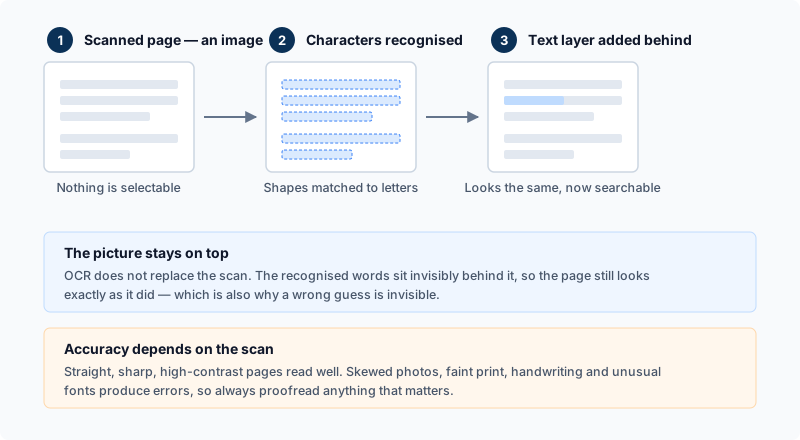
An OCR engine works in stages. It first cleans up the page image, for example by converting it to black and white so that ink and paper are clearly separated. Next it finds the layout: which regions are text, where the lines are, and where each word starts and ends. Then it looks at each line or word and decides which characters it most likely shows, using a trained model rather than a fixed lookup of letter shapes. Finally it uses language knowledge to break ties. If a shape could be an "l" or a "1", the surrounding letters usually settle it.
That last point explains why you choose a language before running OCR. The engine needs to know which alphabet and which vocabulary to expect. Reading Urdu with an English model gives gibberish, and the reverse is just as bad.
The result is text with position information attached: this string sits at these coordinates on this page. That position data is what allows a searchable PDF to exist, as described below.
What makes a scan easy to read
Most bad OCR results are decided before the software runs. Three things matter most.
- Resolution. For ordinary printed text, scans around 200 to 300 dots per inch are a common target. Below that, small letters lose the detail that separates similar shapes. Far above that, files grow large without much accuracy benefit.
- Straightness. A page that is tilted, or curved near a book spine, makes lines slope, and recognition suffers. Flatten the page and align it with the scanner edge, or use a scanning app that squares up the photo.
- Contrast. Dark text on plain light paper is ideal. Faded ink, coloured backgrounds, show-through from the reverse side and shadows from a phone camera all blur the line between letter and background.
If you photograph pages with a phone, use even light, hold the phone parallel to the page, and avoid your own shadow. A slightly skewed photo taken in good light usually beats a perfectly aligned one taken in a dim room.
What the Synthixx OCR PDF tool does
The tool accepts a PDF or an image (PNG, JPG or WebP) up to 100 MB. You pick a language: English, Urdu, Arabic, or English plus Urdu. It then runs Tesseract.js, an open-source OCR engine compiled to run in the browser, one page at a time and shows progress as it goes.
Your file is not uploaded for the recognition itself. The one network request involved is for the language data, a download of a few megabytes from a public CDN the first time you use a language. After that, the work happens on your own device, which also means speed depends on your computer and the number of pages.
For a PDF, each page is drawn to an image at twice its nominal size and then read. On a standard page, that works out to roughly 144 pixels per inch. That is fine for normal body text but can be marginal for very small print.
When it finishes you get two possible downloads:
- A plain text file. For a multi-page document, each page's text is preceded by a marker line such as "--- Page 2 ---" so you can see where pages break.
- A searchable PDF, offered for English only. It is rebuilt from the page images and carries an invisible text layer positioned over the words, so you can search and copy from it while it still looks like the original scan. Urdu and Arabic results are TXT only, because the invisible layer is written with a Latin-only font.
Two consequences are worth knowing. The searchable PDF is made from re-encoded page images, so it is a new file rather than your original with text added, and its size can differ from the source. And the text layer is only as good as the recognition: a misread word is a word your search will not find.
Why the output is not a Word file
People often expect OCR to give them a .docx. This tool does not, and it is worth understanding why. OCR produces text and coordinates. Turning that into an editable Word document with headings, columns, tables and fonts is a separate problem, layout reconstruction, that is much harder than reading characters.
The practical route is simple. Download the TXT, open it, copy the text, and paste it into Word or any editor. You will need to reapply headings and formatting yourself, but the words are there. If you run PDF to Word on a scanned PDF directly, expect nothing useful, because that converter reads a PDF's existing text layer and a scan has none. The searchable PDF from OCR is an image with hidden text, and PDF to Word works on real text objects, so treat TXT as the bridge.
Where OCR gets it wrong
Be realistic about the limits, and always proofread names, numbers and dates.
- Handwriting. Engines like Tesseract are built for print. Neat block capitals sometimes work; cursive rarely does.
- Low resolution or heavy compression. If letters are only a few pixels tall, no engine can recover them.
- Complex layouts. Multi-column pages, tables, sidebars and text wrapped around images can be read in the wrong order or merged across columns. Single-column pages are the safest.
- Decorative fonts, stamps and text over pictures. Contrast and unusual shapes cause misreads.
- Mixed languages. The English + Urdu option helps for bilingual pages, but choosing a language that is not on the page lowers accuracy sharply.
A quick test helps: run one representative page first, read the text, and only then process the whole document.
Editing the scanned document itself
Sometimes you do not want the text out of a scan; you want to correct the source document while keeping its layout. OCR on this site deliberately does not edit the original page. Use the TXT result as the editable copy, make corrections in Word or another editor, and keep the scan as the visual reference. For a PDF that already contains selectable text, PDF to Word extracts the words into a DOCX, but you should expect to rebuild fonts, columns, tables and spacing.
What to do
- Get the best scan you can: 200 to 300 dpi, straight, even light, plain background.
- Choose the language that is actually on the page.
- Test one page with the OCR PDF tool before running a long file.
- Use TXT when you need the words in another program, and the searchable PDF (English only) when you need to keep the page look and add search.
- Proofread anything that matters. If you then need a smaller file for email, see compress a PDF without losing quality, and for combining scans first, how to merge PDF files.