PDF vs Word: When to Keep the PDF and When to Convert
PDF and Word solve different problems. Learn when each format fits, what converters really do, and how the Synthixx conversion tools behave in practice.
PDF and Word files often look the same on screen, which hides how different they are underneath. Choosing the wrong one, or converting between them without expecting the side effects, is behind many small document headaches: broken layouts, missing text, and a contract that no longer matches what you approved. This post explains what each format is for, what converters really do, and what to expect from the tools on this site.
Two formats built for different jobs
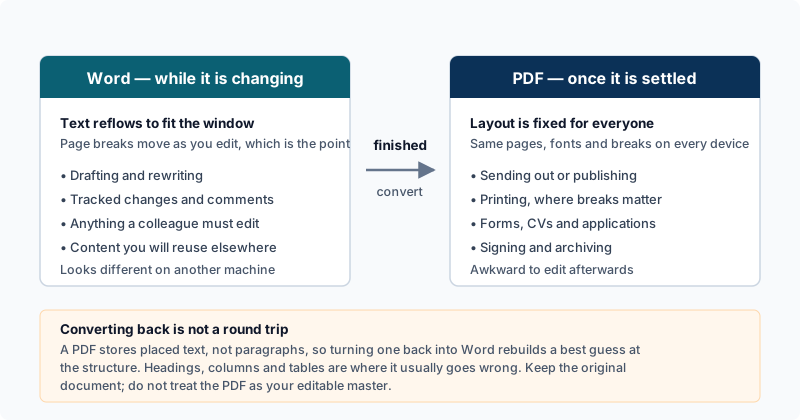
A Word document (.docx) describes content and flow. It says "this is a heading, then a paragraph, then a table", and the application decides where the page breaks fall based on fonts, margins and the printer. Open the same file on two computers with different fonts installed and the pages can shift.
A PDF describes a finished page. Every character is placed at fixed coordinates, fonts are commonly embedded, and the result looks the same everywhere. That is the whole point of the format, and also its weakness: a PDF often has no memory of paragraphs, only of lines and positioned pieces of text. Editing a PDF is closer to editing a drawing than editing a document.
This is why the answer to "which should I use?" depends on who does what next. If people will edit, use Word. If people will read, print, sign or archive, use PDF.
What a converter actually does
Converting Word to PDF is the easier direction, because the source has all the information. The converter lays the pages out and writes them into the fixed format.
Converting PDF to Word is hard, because information has to be guessed. There are two levels of effort:
- Text extraction. Read the text objects in the PDF, group them into lines, and write them into a new document. The words are there, but the layout is approximate.
- Layout reconstruction. Detect columns, tables, headers, images and reading order, then rebuild them as real Word structures. This is what expensive desktop software attempts, and even then complex documents are imperfect.
No converter gets a complex PDF back to exactly the Word file it came from, because that original structure was discarded when the PDF was made.
What the Synthixx converters do
Both tools run in your browser, so the file is not uploaded, and both are on the simpler end of the scale.
PDF to Word is text extraction. It reads the text from each page, groups pieces that sit at about the same height into lines, and writes each line as a paragraph in a .docx, with a page break between pages. Expect your words, in reading order for straightforward pages, but not the original fonts, columns, tables, images or exact spacing. Two consequences matter:
- A scanned PDF gives you nothing, or almost nothing, because it has no text to extract, only pictures of pages. Run OCR PDF first if you want the words, and note that OCR produces TXT rather than a Word file. Our post on how to OCR a PDF covers that path.
- Multi-column pages may come out with lines from different columns interleaved.
Word to PDF reads the .docx, converts it to HTML while keeping basic structure such as headings, lists and simple tables, and draws the result onto A4 pages. The PDF pages are built from images of that rendering, so the text in the output is not selectable or searchable, and page breaks fall wherever the rendering runs out of page rather than where Word would put them. It is fine for a quick read-only copy of a simple document. For anything that must be searched, copied from, or printed with precise typography, export to PDF from Word itself.
A decision table
| Situation | Best choice | Why |
|---|---|---|
| Sending a contract for signature | Keep PDF | Fixed layout, so everyone sees the same pages |
| Collaborating on a draft | Word | Tracked changes, comments, reflowing text |
| Correcting a typo in a finished PDF | Edit in place (see below) | Conversion would disturb the layout |
| Reusing the wording of an old PDF report | Convert to Word | You only need the text, not the layout |
| Archiving a finished document | Stable and widely readable | |
| Scanned paper form | OCR, then decide | Conversion alone yields no text |
| Simple text document needed as PDF | Word to PDF, or export from Word | Depends on whether searchable text matters |
Editing in place instead of converting
A frequent reason people convert is just to change a date, a name or a figure. Converting the whole file to fix one word is heavy-handed, because the round trip PDF to Word to PDF changes fonts and spacing along the way, and the second conversion here produces an image-based PDF.
If you need to revise the wording, use the original Word document whenever it is available. When only a PDF remains, PDF to Word can recover selectable text, but it does not reproduce the original fonts, columns, tables, images or spacing. Rebuild and proofread the layout in Word, then export a fresh PDF. For a scan, run OCR PDF first and use its TXT output as the editable copy.
Common mistakes
- Converting to Word just to read. If you only need to read or print, the PDF is already the better format.
- Trusting conversions without proofreading. Check numbers, tables and anything legal after any conversion.
- Converting a scan and concluding the tool is broken. The file simply has no text yet.
- Editing a signed or approved PDF without telling anyone. Changed pages are a different document.
- Expecting the round trip to be lossless. Each conversion loses something, so keep the original.
A simple rule of thumb
Keep the original file, whichever format it is. Then ask what happens next. If someone will rewrite paragraphs, work from Word, or use PDF to Word to salvage the text of a PDF and accept that you will re-format it. If the file is going to readers, finalise it as a PDF, ideally exported from the program where it was written. When you later need to combine finished documents, merge them as PDFs, and if the result is too large to email, see compressing a PDF.